
How to set up Balance in 5 minutes
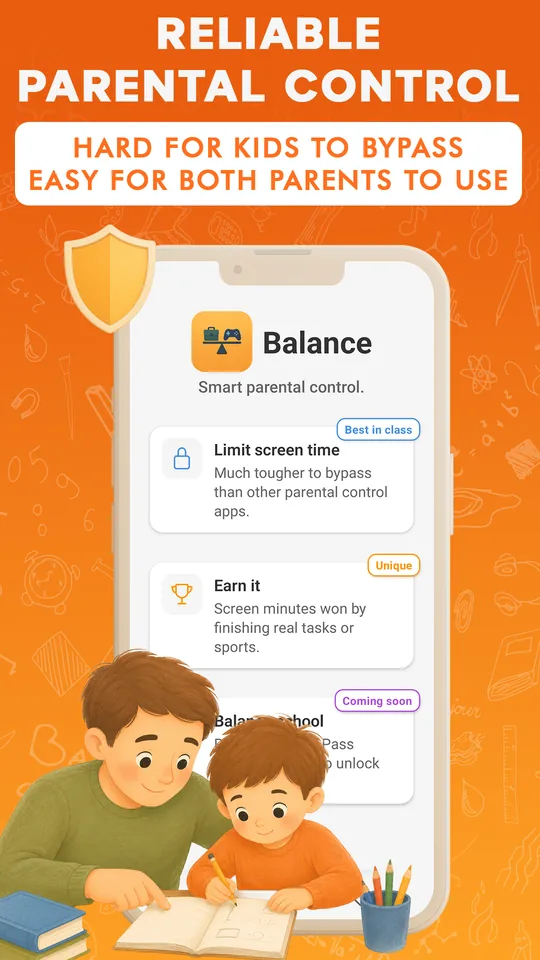
Many parental control apps feel like they were built for IT administrators. Balance is built for busy parents. If your kid’s phone is within reach, the whole setup takes about five minutes.
Below is the shortest path from installing Balance to a working first day: what to do on your phone, what to do on your kid’s phone, and what to expect.
Step 1 · Install Balance on your phone
Get Balance from Google Play on your own phone. On first launch, choose the Parent role and sign in with your email or another option from the list. The account lets you and your co-parent manage the family from your own phones. There are no ads, and we don’t sell your family’s data. The fact sheet lists what Balance does and does not do.
You can start free: location, reports, fixed limits and fixed schedules work right away. Premium adds flexible settings, and you can try it free first. If you don’t subscribe after the trial, your Premium settings are saved but locked, and the free version keeps working. Prices are on the pricing page.
Step 2 · Add your kid and get a code
In Balance on your phone, tap Add kid and enter a name. The app shows a six-digit connection code. You can share it straight away: the message includes the code and a link to Balance on Google Play.
Step 3 · Connect your kid’s phone
Your kid’s phone uses the same Balance app; there is no separate kids’ app. Get it from Google Play, choose the Kid role and enter the code from your phone.
Balance then asks for a few Android permissions: accessibility, usage access, display over other apps, device administrator and location. Each step comes with a detailed animated guide that shows exactly where to tap in the phone’s settings. Limits and tasks can’t work reliably without these permissions, so Balance reminds you if one is missing.
Have more than one kid? Repeat steps 2 and 3 for each. That is what the Several kids option in pricing is for.
Step 4 · Set the first daily limit
Back on your phone, set a daily limit a little below what your kid uses today. A gentle start works better than a sudden cut, and you can tighten it after a week.
Want your kid to earn extra minutes instead of asking for them? Add two or three clear tasks, such as “tidy the desk” or “read aloud for 20 minutes”, and set a reward in minutes for each. When a task is done, your kid marks it on their phone and can attach a photo or video as proof. You get a notification, check it and approve, and the minutes are added right away.
Prefer a learning angle? Turn on Balance School: a short theory page and a quiz on the school curriculum, and a passed quiz earns screen time. It is a separate option in pricing; most families turn it on after a couple of weeks.
What to expect on the first day
For the first few hours your kid will test the limit. That is normal. Expect a question or two (“what happens when the minutes run out?”) and a short talk about tasks. By the evening, Balance on your phone will show the day’s report broken down by app. Go through it together if you want the rule to stick.
After that, two small habits do the work. Once a week, say on Sunday evening, look at the weekly report together. Then change one task or one limit based on what you saw. There is no need to tighten everything at once.
Ready to start?
If you haven’t installed Balance yet, get it from Google Play. Five minutes now saves a lot of arguments later.